
QuickBooks
Reconciling Stripe payouts in QuickBooks Online
In this article
Stripe pays you in batches, so one deposit in your bank covers many jobs. Recorded naively that money gets counted twice — once as the payments and again as the deposit. There are two ways to stop that. Let BizBaby record the Transfer for you, which is one switch, or match the deposits yourself with a rule in QuickBooks. The first is new and is what most people should use.

When you take card payments, the money does not arrive job by job. Stripe collects it, holds it briefly, then sends it to your bank in a batch. Finish six jobs on a Tuesday and you may see a single deposit on Thursday covering all six, minus fees.
That is fine until you reconcile. QuickBooks wants each payment tied to the invoice it settled, and it has just seen one lump sum arrive with no idea what is inside it.
Why it double-counts
BizBaby already records each payment as it happens, along with the Stripe fee and any refunds. Those land in a clearing account — a QuickBooks bank account that represents the money sitting inside Stripe before it reaches you. That part is automatic and there is no switch for it.
Then the real deposit hits your business account. If you categorise that as income, you have booked the same money twice: once when the customer paid, once when Stripe forwarded it.
The deposit is not income. It is a transfer — your own money moving from one account you own to another. Both methods below are just different ways of telling QuickBooks that.
The automatic way, which is one switch
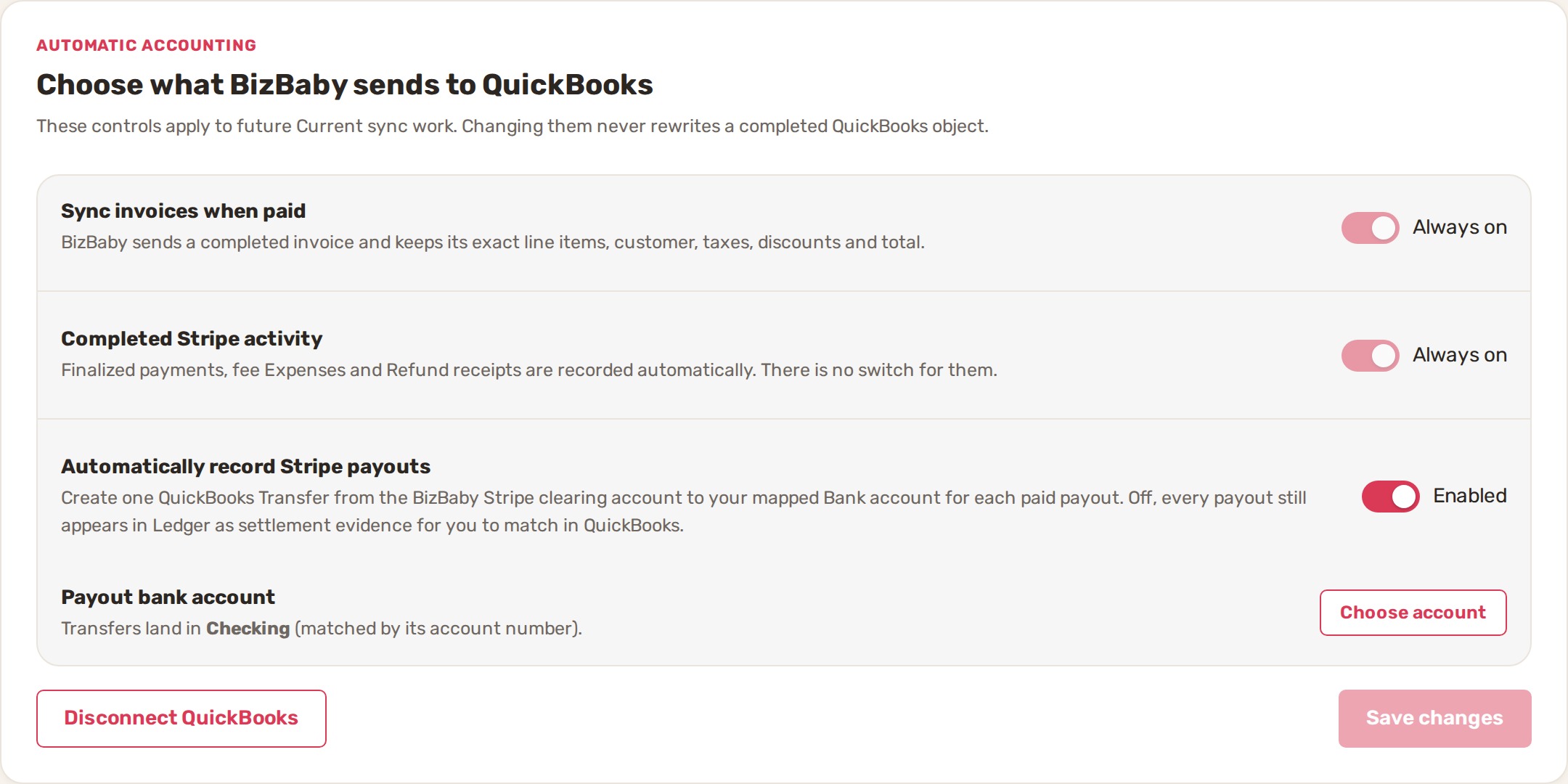
In Settings → QuickBooks accounting, turn on Automatically record Stripe payouts. From then on, for every paid payout, BizBaby writes a single QuickBooks Transfer from the clearing account to your bank account. Nothing to categorise and nothing to remember.
It needs to know one thing first: which QuickBooks bank account your payouts actually land in. BizBaby will work that out on its own, but only when the answer cannot be wrong.
- It matches on currency and the last four digits of the account your payouts go to, and it must find exactly one active QuickBooks bank account that fits.
- It will not match on the account name. Two accounts called “Chase Checking” are precisely the situation the digits exist to settle.
- No match, two matches, or a QuickBooks that hides account numbers all produce the same result: BizBaby asks you instead of guessing. Guessing here writes money into the wrong register.
- You choose once, under Payout bank account, and the choice is remembered for the connection.
- Until it is set, Transfers wait. Nothing is posted to the wrong place in the meantime.
When it matched by itself, the setting says so — “matched by its account number”. That is your cue that nobody typed it in.
The manual way, and when to use it
Leave the switch off and BizBaby posts no Transfers. Every payout still appears in your Ledger as settlement evidence, so you have the record; you are simply matching the deposits yourself.
Do that when your bookkeeper wants to own the categorisation, when payouts land somewhere BizBaby cannot see, or when you are mid‑year and would rather not change how the books are being kept.
The way to do it without touching every deposit is a bank rule in QuickBooks Online:
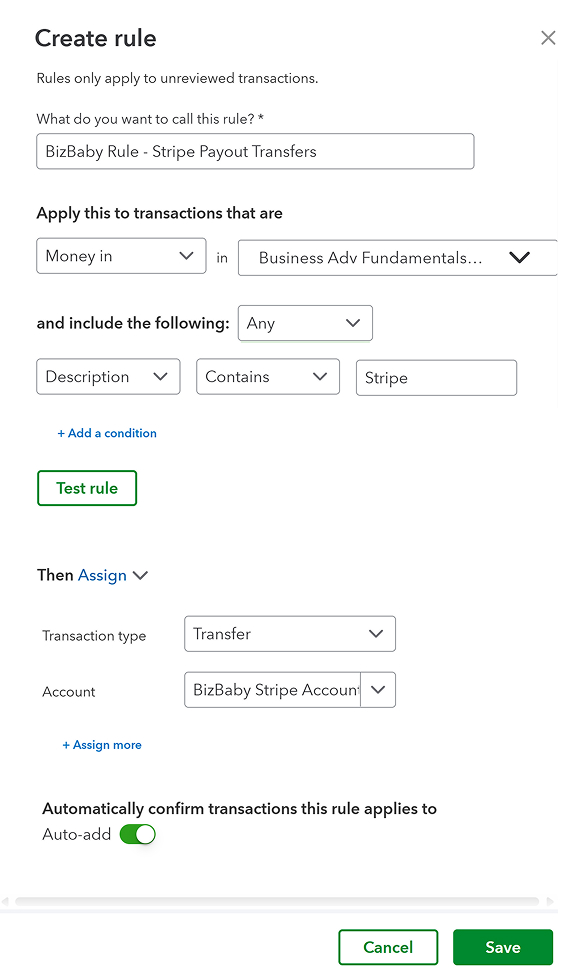
- Name the rule something you will recognise later, such as “Stripe payout transfers”.
- Apply it to money in, on the bank account your payouts arrive in.
- Match on the description containing “Stripe”. Check your own statement wording — it varies by bank.
- Set the transaction type to Transfer, with the clearing account as the other side. This is the line that stops the double count.
- Test the rule before you switch on auto‑add, then let it run.

Which one to choose
| Automatic | Manual rule | |
|---|---|---|
| Who writes the Transfer | BizBaby, one per paid payout. | QuickBooks, when the deposit clears. |
| Setup | One switch, plus confirming the bank account if it cannot be matched. | A rule to build and maintain. |
| If the wording on your statement changes | Unaffected. | The rule silently stops matching. Worth checking after a bank change. |
| Who is in control | BizBaby, from the settings page. | Whoever keeps the books. |
| Payout record | In Ledger, and posted. | In Ledger as evidence, unposted. |
Most businesses should take the switch. The rule is the right answer when somebody else owns your chart of accounts and wants it kept that way.
Checking it worked
- The clearing account should trend towards zero, not climb. A balance that keeps growing means payments are going in and Transfers are not coming out.
- One Transfer per payout, for the payout amount. Fees are recorded separately as expenses, so the Transfer is the net figure that actually moved.
- Your bank feed should show the deposit already matched, not waiting to be categorised as income.
- Anything BizBaby could not complete appears on the QuickBooks accounting page as an item needing attention, with its own status. It is not silent.
Related
- Manually add tax rates in QuickBooks Online
- The money you already earned — getting paid faster in the first place, which is the other half of this problem.
Was this article useful?
Knowing what to charge is step one
First 3 months free. No card required. Bring the whole team.
Start Free Trial Back to Login